
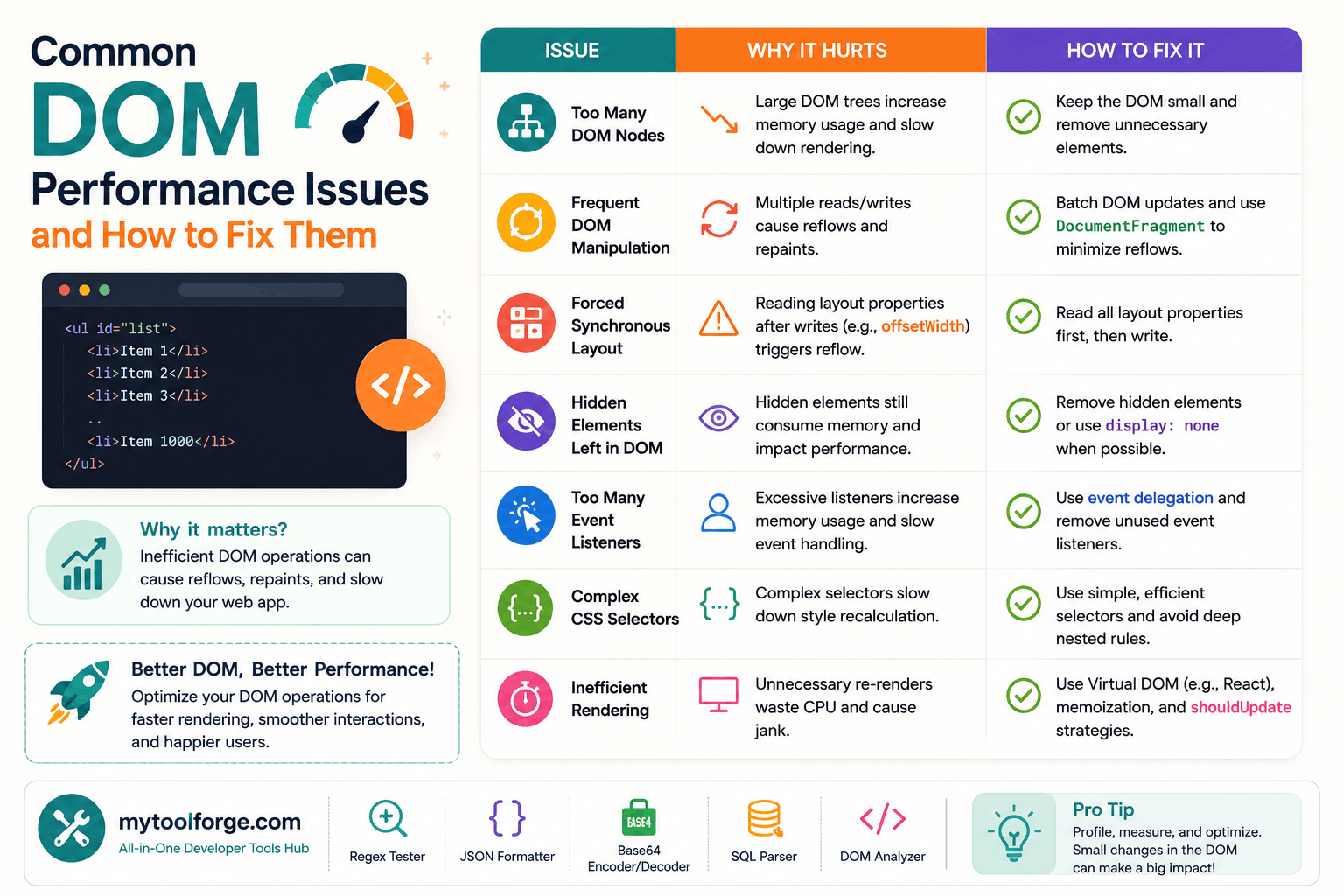
Common DOM Performance Issues and How to Fix Them
The Document Object Model, or DOM, is the browser’s in-memory representation of an HTML document.
JavaScript and browser APIs use it to:
- Read page content
- Add or remove elements
- Update text and attributes
- Handle user input
- Measure layout
- Control focus
- Build interactive interfaces
DOM operations are not automatically slow. Performance problems appear when an application creates excessive work, such as:
- Rendering thousands of unnecessary elements
- Rebuilding large subtrees for small updates
- Alternating layout reads and writes
- Keeping removed elements reachable in memory
- Running expensive observers or event handlers
- Updating far more framework components than necessary
- Rendering offscreen content users may never see
The correct approach is to measure a real interaction, identify where time is spent, and optimize the specific bottleneck.
What “DOM Performance” Includes
DOM performance can involve several different browser activities:
- HTML parsing
- DOM creation
- Style calculation
- Layout
- Paint
- Compositing
- JavaScript execution
- Garbage collection
- Event handling
- Framework rendering and reconciliation
A page can contain many nodes and still perform acceptably when it rarely updates. A smaller page can feel slow if every pointer movement triggers expensive JavaScript and layout.
Do not diagnose a “DOM problem” from node count alone.
Measure Before Optimizing
Begin with a specific user-visible problem:
Typing into the product filter becomes slow after 5,000 rows load.Record the interaction in Chrome DevTools:
- Open the Performance panel.
- Start a recording.
- Reproduce the slow interaction.
- Stop recording.
- Inspect scripting, style, layout, paint, and long tasks.
- Identify the responsible function and elements.
Also inspect:
- DOM node count
- Event-listener count
- Memory growth
- Detached elements
- Framework profiler results
- Interaction to Next Paint
- Long animation frames
Chrome DevTools’ DOM Size insight can identify cases where a large tree contributes to style, layout, and memory cost.
A warning is a lead for investigation—not proof that every node must be removed.
1. Excessive Initial DOM Size
A large DOM can increase:
- HTML download size
- Parsing time
- Memory use
- Style-calculation work
- Layout work
- Query cost
- Update cost
Common causes include:
- Rendering every tab panel at startup
- Creating thousands of table rows
- Deep wrapper structures
- Duplicating desktop and mobile interfaces
- Rendering modal contents that are rarely opened
- Loading an entire activity history
- Generating decorative elements in markup
Remove wrappers only when they are unnecessary
Before:
<div class="card-wrapper">
  <div class="card-container">
    <div class="card-content">
      <h2>Product</h2>
      <p>Description</p>
    </div>
  </div>
</div>
After:
<article class="card">
  <h2>Product</h2>
  <p>Description</p>
</article>
Do not remove elements required for:
- Semantics
- Accessibility
- Layout
- Component boundaries
- Focus management
- Styling
A flatter DOM is not automatically better if it damages structure or maintainability.
2. Rendering Large Lists All at Once
Rendering 50,000 table rows is expensive even if JavaScript creates them efficiently.
Possible strategies include:
- Pagination
- “Load more” controls
- Server-side filtering
- Incremental rendering
- Virtualization or windowing
- Collapsing inactive groups
- Rendering details only when expanded
Pagination
async function loadPage(page) {
  const response = await fetch(
    `/api/products?page=${page}`
  );

  if (!response.ok) {
    throw new Error(
      `Request failed: ${response.status}`
    );
  }

  return response.json();
}
Pagination limits network, memory, and DOM work.
Virtualization
A virtualized list renders only:
- Currently visible rows
- A small buffer above and below the viewport
It can dramatically reduce node count, but it introduces accessibility and usability concerns:
- Keyboard navigation
- Screen-reader navigation
- Focus retention
- Browser find-in-page
- Printing
- Variable-height rows
- Scroll-position restoration
Use a maintained virtualization implementation and test these behaviors.
3. Repeated innerHTML +=
This pattern is inefficient:
for (let index = 0; index < 1000; index++) {
  list.innerHTML += `
    <li>Item ${index}</li>
  `;
}
Each assignment reads the existing HTML, creates a larger string, reparses the container, and replaces descendants.
It can also:
- Remove existing event listeners on replaced nodes
- Reset element state
- Lose focus
- Create injection vulnerabilities
- Produce repeated allocations
Use DOM creation and a fragment
const fragment =
  document.createDocumentFragment();

for (let index = 0; index < 1000; index++) {
  const item =
    document.createElement("li");

  item.textContent = `Item ${index}`;
  fragment.append(item);
}

list.replaceChildren(fragment);
This creates the nodes while they are detached and performs one final subtree replacement.
A fragment does not guarantee “exactly one reflow.” Browsers schedule rendering work according to their own pipeline. Its main benefits are avoiding repeated subtree parsing and grouping the insertion logically.
If markup comes from trusted templates
Creating one string and assigning it once can be efficient:
list.innerHTML = trustedHtml;Never insert untrusted values into innerHTML without a suitable trusted sanitization and templating strategy.
Prefer textContent when the value is text.
4. Rebuilding a Large Subtree for One Change
Suppose one order status changes.
Inefficient approach:
orders = orders.map(order => {
  if (order.id === changedId) {
    return {
      ...order,
      status: newStatus
    };
  }

  return order;
});

table.innerHTML =
  renderEveryOrder(orders);
Targeted DOM update:
const row = table.querySelector(
  `[data-order-id="${CSS.escape(changedId)}"]`
);

const status =
  row?.querySelector(".order-status");

if (status) {
  status.textContent = newStatus;
}
Whether direct updates or framework state should be used depends on the application architecture. Do not bypass framework ownership of the DOM without understanding its reconciliation model.
The general objective is to avoid recreating thousands of unaffected elements.
5. Layout Thrashing
Layout thrashing occurs when code repeatedly alternates between DOM writes and layout-dependent reads.
Problematic:
for (const item of items) {
  item.style.width = "200px";

  console.log(
    item.getBoundingClientRect().height
  );
}
The geometry read may force the browser to process pending style and layout changes during each iteration.
Improved:
const measurements = items.map(item => ({
  item,
  height:
    item.getBoundingClientRect().height
}));

for (const measurement of measurements) {
  measurement.item.style.width =
    measurement.height > 100
      ? "300px"
      : "200px";
}
Read first, calculate second, and write afterward.
For a detailed explanation, see How to Reduce Reflows and Repaints in CSS.
6. Too Many Event Listeners: Measure Before Changing
Attaching one listener to each button is not automatically a performance problem:
for (const button of buttons) {
  button.addEventListener(
    "click",
    handleClick
  );
}
Modern browsers can handle many listeners. The real cost depends on:
- Number of elements
- Listener closure size
- Event frequency
- Handler work
- Element lifetime
- Cleanup behavior
For a small, stable interface, individual listeners may be the clearest implementation.
Event delegation
Delegation is useful for large or dynamic collections:
list.addEventListener(
  "click",
  event => {
    const button =
      event.target.closest(
        "[data-action]"
      );

    if (
      !button ||
      !list.contains(button)
    ) {
      return;
    }

    const action =
      button.dataset.action;

    handleAction(action, button);
  }
);
Benefits include:
- One listener for many descendants
- Automatically supports newly inserted descendants
- Centralized interaction logic
Trade-offs include:
- More complex target matching
- Events that do not bubble
- Shadow DOM boundaries
- Nested interactive elements
- Harder component isolation
Delegate at the nearest stable container rather than automatically attaching every event to document.body.
7. Expensive Event Handlers
The listener count may be acceptable while the handler itself is slow.
Problem:
window.addEventListener(
  "scroll",
  () => {
    const elements =
      document.querySelectorAll(".card");

    for (const element of elements) {
      updateCard(element);
    }
  }
);
This repeatedly queries and updates every card during scrolling.
Possible improvements:
- Cache a stable collection
- Update only affected elements
- Use
IntersectionObserver - Schedule visual updates intentionally
- Remove work that is unrelated to scrolling
- Use CSS sticky positioning or scroll-driven features where appropriate
Example with IntersectionObserver:
const observer =
  new IntersectionObserver(entries => {
    for (const entry of entries) {
      entry.target.classList.toggle(
        "is-visible",
        entry.isIntersecting
      );
    }
  });

for (const card of cards) {
  observer.observe(card);
}
Keep observer callbacks small. They run near rendering and can still create performance problems if they perform large updates.
8. Selector Performance Myths
This selector:
document.querySelector(
  "div.container ul li span"
);
is not automatically a meaningful bottleneck.
Modern selector engines are highly optimized. In many applications, network delays, JavaScript execution, layout, and framework updates are much more significant.
Optimize selectors when profiling shows they are hot.
Useful practices include:
Scope the search
const target =
  container.querySelector(
    "[data-product-id='42']"
  );
This avoids searching unrelated parts of the document.
Cache stable references
const saveButton =
  document.querySelector("#save-button");
Caching is useful when the same stable node is accessed repeatedly in a hot path.
Do not cache every element indefinitely. Long-lived references to removed subtrees can contribute to memory retention.
Use appropriate selectors
IDs, classes, and data attributes can communicate intent:
const dialog =
  document.querySelector(
    '[data-component="checkout-dialog"]'
  );
Do not restructure the application merely to replace every querySelector() call with getElementById().
9. Detached DOM Nodes and Memory Leaks
Removing an element does not guarantee immediate garbage collection:
element.remove();The node can be collected only when it is no longer reachable from live application references.
Common retention sources include:
- Global variables
- Arrays or maps
- Closures
- Event handlers
- Observers
- Timers
- Caches
- Framework state
- Third-party libraries
Example leak
const removedCards = [];

function removeCard(card) {
  card.remove();
  removedCards.push(card);
}
The array intentionally retains every removed card.
Correct the ownership
function removeCard(card) {
  card.remove();
}
If a collection needs temporary references, delete them when no longer needed:
cardCache.delete(cardId);Clean up component resources
function mountComponent(root) {
  const controller =
    new AbortController();

  const observer =
    new ResizeObserver(handleResize);

  const intervalId =
    setInterval(refreshData, 30_000);

  root.addEventListener(
    "click",
    handleClick,
    {
      signal: controller.signal
    }
  );

  observer.observe(root);

  return function unmount() {
    controller.abort();
    observer.disconnect();
    clearInterval(intervalId);
    root.remove();
  };
}
Setting a local variable to null is not a universal memory-leak fix. You must remove all unintended reachable references and clean up ongoing work.
Use the DevTools Memory panel and heap snapshots to investigate retained detached elements.
10. Rendering Hidden Content Too Early
An element hidden with display: none does not participate in layout or paint, but it still occupies DOM memory and may contribute to selector or JavaScript work.
Examples include:
- Large modal forms
- Inactive dashboard tabs
- Expanded navigation variants
- Hidden data tables
- Complete multi-step forms
- Large dropdown menus
Render heavy content when it is needed:
function openReportDialog() {
  if (!dialog.hasChildNodes()) {
    dialog.append(
      buildReportDialog()
    );
  }

  dialog.showModal();
}
Trade-offs include:
- Delay on first opening
- Additional state management
- Accessibility announcements
- Focus behavior
- Form-state preservation
For lightweight content, keeping it in the DOM may provide a better experience than creating it repeatedly.
11. Offscreen Content Rendering
For long pages with independent sections, content-visibility can allow the browser to skip some offscreen rendering work:
.dashboard-section {
  content-visibility: auto;
  contain-intrinsic-size: auto 600px;
}
This can improve initial rendering on long pages.
Test:
- Scrolling
- Anchor navigation
- Keyboard focus
- Find-in-page
- Printing
- Layout stability
- Accessibility behavior
It does not remove the elements from the DOM or necessarily eliminate their memory cost.
12. MutationObserver Overwork
MutationObserver is useful for reacting to DOM changes, but observing a large subtree with broad options can produce excessive records.
Broad observation:
observer.observe(document.body, {
  childList: true,
  attributes: true,
  characterData: true,
  subtree: true
});
Before using this configuration, ask:
- Can the application call the update function directly?
- Can observation be limited to one component?
- Are attribute filters possible?
- Is text observation necessary?
- Can records be processed in one batch?
Narrower example:
observer.observe(list, {
  childList: true,
  subtree: false
});
Process only relevant mutations:
const observer =
  new MutationObserver(records => {
    const addedItems = [];

    for (const record of records) {
      if (record.type !== "childList") {
        continue;
      }

      for (
        const node of record.addedNodes
      ) {
        if (
          node instanceof HTMLElement &&
          node.matches(".list-item")
        ) {
          addedItems.push(node);
        }
      }
    }

    initializeItems(addedItems);
  });
Disconnect observers when the component is removed.
13. Live Collections Causing Surprising Work
Some DOM collection APIs are live.
Example:
const items =
  document.getElementsByClassName("item");
The collection updates as matching elements are added or removed.
This loop can behave unexpectedly:
for (
  let index = 0;
  index < items.length;
  index++
) {
  items[index].classList.remove("item");
}
Removing the class changes the live collection while it is being iterated.
Create a snapshot:
const items = [
  ...document.getElementsByClassName(
    "item"
  )
];

for (const item of items) {
  item.classList.remove("item");
}
querySelectorAll() returns a static NodeList, which may be easier to reason about for many operations.
14. Unnecessary Framework Rendering
A framework render does not always mean the browser DOM was changed.
React, Vue, and similar frameworks may:
- Run component rendering logic
- Compare new output with previous output
- Update only the required DOM nodes
Performance can still suffer when:
- State is stored too high in the tree
- A frequently changing value reaches many components
- Expensive calculations run during render
- Context updates affect large subtrees
- Lists use unstable keys
- Effects repeatedly update state
- Components perform DOM measurement during rendering
- Large collections are not virtualized
Profile first
Use the framework’s profiler to identify:
- Which components render
- How long rendering takes
- What caused the update
- Whether DOM work follows
- Whether memoization would help
Memoization is not automatically faster
Memoization adds:
- Comparison work
- Memory use
- Dependency management
- Risk of stale values
- Code complexity
Apply it to measured bottlenecks, not every component.
Keep state near its consumers
If a text input’s state exists at the application root, each keystroke may trigger broad rendering.
Move state closer to the component when other parts of the application do not need it.
15. Unstable List Keys
Frameworks use keys to identify list items.
Problematic React example:
{products.map((product, index) => (
  <ProductRow
    key={index}
    product={product}
  />
))}
When items are inserted or reordered, index keys can cause incorrect state association and unnecessary DOM replacement.
Prefer a stable identifier:
{products.map(product => (
  <ProductRow
    key={product.id}
    product={product}
  />
))}
Do not generate a new random key during each render. That tells the framework the old component disappeared and a new one replaced it.
16. Expensive Animations
Animating layout properties such as width, height, top, or left can create repeated layout work.
When behavior permits, transform and opacity are often better animation candidates:
.card {
  transform: translateY(0);
  opacity: 1;
  transition:
    transform 180ms ease,
    opacity 180ms ease;
}

.card.is-leaving {
  transform: translateY(8px);
  opacity: 0;
}
This is not a guarantee that the animation will be cheap or GPU-accelerated.
Measure:
- Main-thread work
- Paint duration
- Layer creation
- Memory use
- Frame consistency
Also support reduced-motion preferences.
17. Layout Shifts from Late DOM Insertion
Inserting a banner above existing content can move everything on the page:
page.prepend(banner);If the insertion is expected, reserve space:
.banner-slot {
  min-height: 64px;
}
For images, include dimensions:
<img
  src="/images/product.webp"
  alt="Product"
  width="800"
  height="600"
>
For videos and embeds:
.embed {
  aspect-ratio: 16 / 9;
}
This improves visual stability even though the DOM still changes.
A Practical Investigation Workflow
Step 1: Define the slow interaction
Example:
Filtering the orders table takes 800 milliseconds after
10,000 rows are loaded.
Step 2: Record a trace
Determine whether the time is spent in:
- JavaScript
- Style calculation
- Layout
- Paint
- Garbage collection
- Framework rendering
Step 3: Inspect DOM scale
Record:
- Total node count
- Number of affected rows
- Depth of the relevant subtree
- Number of updated elements
Step 4: Inspect memory
Check whether repeated navigation or filtering continually increases:
- DOM nodes
- Event listeners
- Heap size
- Detached elements
Step 5: Form one hypothesis
Examples:
- All 10,000 rows are rebuilt on each keystroke.
- A global state update rerenders the page.
- Each row performs layout measurement.
- Removed rows remain in a cache.
- The filter handler runs once per key event without a limit.
Step 6: Make one targeted change
Possible change:
Render only the first 100 filtered results and add pagination.Step 7: Measure again
Compare:
- Interaction latency
- Long-task duration
- Layout time
- Node count
- Memory
- User-visible behavior
DOM Performance Checklist
DOM structure
- Unnecessary wrappers are removed.
- Heavy inactive panels are not rendered prematurely.
- Large lists use pagination or virtualization where appropriate.
- Stable semantic HTML is preserved.
- Duplicate mobile and desktop trees are avoided when possible.
Updates
- Large subtrees are not rebuilt for small changes.
innerHTML +=is avoided.- Untrusted values are inserted safely.
- DOM reads and writes are grouped.
- Updates affect only required elements.
Events and observers
- Event handlers do minimal work.
- Delegation is used where it simplifies dynamic collections.
- Scroll and resize work is controlled.
- Observers have narrow scopes.
- Listeners, observers, and timers are cleaned up.
Memory
- Removed elements are not retained unintentionally.
- Caches have clear eviction behavior.
- Component unmounting performs cleanup.
- Memory is checked after repeated navigation.
- Detached nodes are investigated with heap snapshots.
Frameworks
- Updates are measured with a profiler.
- State is not unnecessarily global.
- List keys are stable.
- Expensive render calculations are controlled.
- Memoization is used only for measured problems.
Verification
- Performance is tested on representative devices.
- Keyboard and screen-reader behavior still works.
- Virtualized lists preserve focus correctly.
- Visual stability is checked.
- Real-user interaction metrics are monitored.
Common DOM Performance Myths
“Every DOM update causes an immediate reflow”
Browsers often defer and batch rendering work. Synchronous layout problems usually appear when code requests current geometry after pending changes.
“One event listener is always better than many”
Delegation can help large dynamic collections, but individual listeners may be simpler and sufficiently fast.
“IDs are always faster than every CSS selector”
Selector performance rarely matters without a hot loop or very large search scope. Measure before restructuring code.
“Setting a removed element to null fixes leaks”
Only unreachable objects can be collected. Clean up every unintended reference, observer, timer, listener, and cache entry.
“Virtualization is always better”
It reduces rendered nodes but increases implementation and accessibility complexity.
“Framework rerender means DOM replacement”
Frameworks can execute component logic without changing the actual DOM.
“A large DOM automatically hurts SEO”
DOM size can affect load and interaction performance, but it is not a direct guarantee of poor rankings. Optimize the user-visible performance problem rather than chasing a node-count score.
Final Thoughts
DOM performance is not about avoiding the DOM. It is about controlling how much work the browser performs for each user interaction.
The most effective improvements usually come from:
- Rendering less content initially
- Paginating or virtualizing large collections
- Updating only changed elements
- Avoiding repeated subtree replacement
- Grouping layout reads and writes
- Cleaning up component resources
- Limiting observer and event-handler work
- Measuring framework updates
- Preventing unintended memory retention
Start with a real performance recording. Identify whether the problem is scripting, layout, painting, memory, or framework rendering. Then make the smallest targeted change and measure again.
That process produces better results than applying generic rules such as “never use complex selectors” or “always delegate every event.”
Try Next
Other utilities you might find helpful
Regex Tester
Test and debug regular expressions with live matches.
Regex Debugger
Understand regex step-by-step with explanations.
JSON Formatter
Format, validate, and minify JSON instantly.
Base64 Encoder/Decoder
Encode and decode Base64 strings and files.
SQL Explain Parser
Analyze SQL execution plans and optimize queries.
DOM Complexity Analyzer
Analyze HTML DOM structure, detect deep nesting, count nodes, and identify performance issues instantly.