
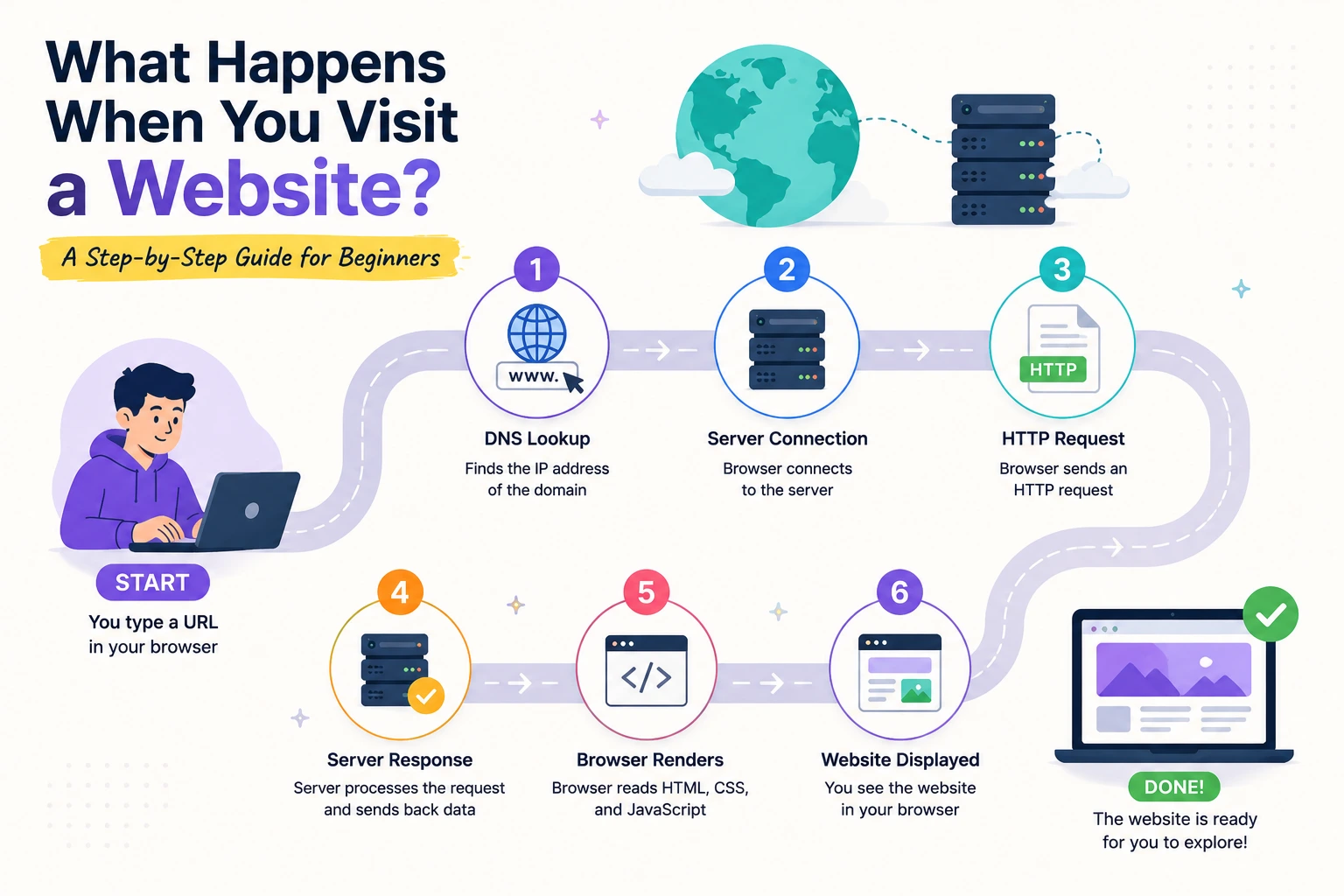
What Happens When You Visit a Website? A Step-by-Step Guide for Beginners
You enter a website address, press Enter, and a complete page appears within seconds.
Behind that simple action, the browser may need to:
- Interpret the URL
- Find the website’s server
- Establish a secure connection
- Send an HTTP request
- Follow redirects
- Download HTML
- Discover additional resources
- Build the DOM and CSSOM
- Execute JavaScript
- Calculate page layout
- Paint pixels
- Make the page interactive
These operations do not always happen in a perfectly linear order. Modern browsers perform many of them concurrently to display useful content as quickly as possible.
This guide follows the journey from entering a URL to seeing and interacting with the finished webpage.
The Process at a Glance
A simplified page-load sequence looks like this:
- The browser interprets the URL.
- It checks browser policies, service workers, and cached resources.
- DNS resolves the domain to an IP address.
- The browser establishes a connection.
- HTTPS creates a secure channel.
- The browser sends an HTTP request.
- A CDN, proxy, or application server handles the request.
- The server returns an HTTP response.
- The browser begins parsing the HTML.
- Additional CSS, JavaScript, image, and font requests begin.
- The DOM and CSSOM are constructed.
- JavaScript executes.
- The browser calculates layout.
- Visual content is painted and composited.
- More data may load after the initial page appears.
Now let’s examine each stage.
Step 1: The Browser Interprets the URL
The process begins when you enter a URL such as:
https://www.example.com/products?category=laptops#featuredA URL can contain several components:
| Component | Example | Purpose |
|---|---|---|
| Scheme | https | Defines the protocol |
| Hostname | www.example.com | Identifies the destination |
| Port | 443 | Optional network port |
| Path | /products | Identifies a resource |
| Query | ?category=laptops | Sends additional parameters |
| Fragment | #featured | Identifies a location inside the document |
The browser parses the URL to determine:
- Which protocol to use
- Which host it must contact
- Which resource to request
- Whether a custom port is specified
- Which fragment should be selected after the document loads
The fragment is usually handled by the browser and is not included in the HTTP request sent to the server.
Step 2: Navigation Policies and Local Interception Are Checked
Before making a normal network request, the browser may apply local rules.
These can include:
- HTTPS upgrade policies
- HTTP Strict Transport Security
- Browser extensions
- Service workers
- Previously stored redirects
- Navigation-preload behavior
- Browser security policies
HTTPS upgrades
If a domain uses HTTP Strict Transport Security, the browser can automatically replace an http:// request with https:// before contacting the server. This helps prevent insecure initial connections.
Service workers
A service worker can intercept requests within its scope.
It may:
- Return a cached page
- Fetch the resource from the network
- Provide an offline fallback
- Combine cached and network data
- Implement an application-specific caching strategy
Because of service workers, visiting a page does not always mean the request immediately reaches the website’s origin server.
Step 3: The Browser Looks for Reusable Cached Data
Browsers cache previously downloaded responses such as:
- HTML documents
- Stylesheets
- JavaScript files
- Images
- Fonts
- API responses
However, the browser does not simply ask, “Is this URL in the cache?”
It also considers HTTP caching rules such as:
Cache-ControlExpiresETagLast-Modified- Request method
- Response status
- Credentials and authorization
- Whether the cached response is still fresh
A fresh cached response may be reused without downloading the resource again.
A stale response may require revalidation:
If-None-Match: "version-123"If the resource has not changed, the server can return:
HTTP/1.1 304 Not ModifiedThe browser then reuses the existing cached body.
HTTP caching reduces network transfer and loading time, but its behavior depends on the response’s caching directives.
Step 4: DNS Resolves the Domain Name
Humans use domain names such as:
example.comNetwork connections use IP addresses.
The Domain Name System, or DNS, translates a hostname into one or more addresses, such as:
93.184.216.34or an IPv6 address.
Where DNS information may be found
The answer may already exist in:
- The browser’s DNS cache
- The operating system’s cache
- A local network resolver
- An internet service provider’s resolver
- A public recursive DNS resolver
If the result is not cached, the recursive resolver may contact multiple DNS servers to obtain the authoritative answer.
DNS may return more than one answer
A domain may resolve to:
- Several IPv4 addresses
- Several IPv6 addresses
- A CDN endpoint
- A load balancer
- A geographically nearby server
- An alias pointing to another hostname
This allows websites to distribute traffic and improve reliability.
DNS is a distributed naming system rather than one central internet phone book.
Step 5: The Browser Establishes a Network Connection
After obtaining a destination address, the browser needs a connection.
The exact process depends on the HTTP version.
HTTP/1.1 and HTTP/2
These versions commonly operate over TCP.
TCP establishes a reliable connection before application data is exchanged.
HTTP/3
HTTP/3 operates over QUIC, which uses UDP while providing reliable streams and integrated security. Its connection behavior differs from TCP-based HTTP versions.
The browser and server can negotiate which supported protocol to use.
In many cases, existing connections can also be reused, avoiding the cost of creating a new connection for every resource.
Step 6: HTTPS Establishes a Secure Channel
Most websites use HTTPS.
HTTPS protects the connection between the browser and the server by using TLS. During the TLS handshake, the browser and server establish encryption keys and agree on security parameters.
The browser also examines the server certificate.
It checks information such as:
- Whether the certificate is valid
- Whether it covers the requested hostname
- Whether it is within its valid date range
- Whether it chains to a trusted certificate authority
- Whether the connection meets browser security requirements
After a successful handshake, HTTP messages can travel through an encrypted channel.
HTTPS helps provide:
- Confidentiality
- Integrity
- Server authentication
It does not prove that the website itself is trustworthy. It proves that the browser established an encrypted connection to the identity represented by the certificate.
Step 7: The Browser Sends an HTTP Request
The browser can now request the document.
A simplified HTTP request might look like this:
GET /products?category=laptops HTTP/1.1
Host: www.example.com
Accept: text/html
Accept-Encoding: gzip, br
Accept-Language: en-US
User-Agent: browser-information
The request includes:
- An HTTP method
- A request target
- Headers
- Sometimes a request body
A normal page navigation usually uses GET.
Cookies and credentials
Depending on the cookie’s domain, path, security attributes, and browser policy, the request may also include cookies:
Cookie: session_id=abc123Cookies may be used for:
- Authentication
- Preferences
- Shopping carts
- Experiment assignments
- Session management
Browsers apply restrictions such as Secure, HttpOnly, and SameSite according to how each cookie was configured.
Step 8: A CDN or Reverse Proxy May Receive the Request
The request does not necessarily reach the application server directly.
It may first pass through:
- A content delivery network
- A load balancer
- A reverse proxy
- A web application firewall
- A caching layer
- An API gateway
- A DDoS protection service
What a CDN can do
A CDN may return a cached response from a server near the visitor.
This can reduce:
- Geographic latency
- Load on the origin server
- Bandwidth usage
- Response times for static resources
If the CDN does not have an acceptable cached copy, it forwards the request to the origin infrastructure.
Step 9: The Server Processes the Request
The server determines how to handle the requested URL.
For a static website, it may return an existing HTML file.
For a dynamic application, it may:
- Match the URL to a route.
- Validate cookies or authentication credentials.
- Check authorization.
- Run application code.
- Query a database.
- Read cached information.
- Call another service.
- Render an HTML template.
- Generate the response.
The infrastructure might include:
- Nginx or Apache
- Node.js
- PHP or Laravel
- Python or Django
- Ruby on Rails
- Java or Spring
- .NET
- Serverless functions
- Database and cache services
A slow operation at any of these layers can delay the initial response.
Step 10: The Server Sends an HTTP Response
A simplified response might look like this:
HTTP/1.1 200 OK
Content-Type: text/html; charset=utf-8
Content-Encoding: br
Cache-Control: public, max-age=300
The body then contains the HTML document.
An HTTP response includes:
- A status code
- Response headers
- An optional body
Common navigation status codes
200 OK: the resource was returned301 Moved Permanently: permanent redirect302 Found: temporary redirect behavior304 Not Modified: cached representation can be reused404 Not Found: resource was not found500 Internal Server Error: server encountered an error503 Service Unavailable: service is temporarily unavailable
HTTP semantics, methods, headers, and status codes are defined by HTTP standards.
Step 11: The Browser May Follow a Redirect
The first response is not always the final document.
For example:
HTTP/1.1 301 Moved Permanently
Location: https://www.example.com/
The browser reads the Location header and starts another request.
Redirects are commonly used to:
- Move from HTTP to HTTPS
- Add or remove
www - Redirect old URLs
- Normalize trailing slashes
- Send users to a regional site
- Complete an authentication flow
Each redirect adds another request-response cycle. Long redirect chains increase loading time and can complicate caching and debugging.
Step 12: The HTML Arrives as a Stream
The browser does not necessarily wait for the entire HTML document before processing it.
As bytes arrive, the browser:
- Determines the document encoding.
- Decodes bytes into characters.
- Breaks the characters into HTML tokens.
- Creates DOM nodes.
- Adds those nodes to the document tree.
This streaming behavior allows the browser to begin discovering resources and building the page before the full response finishes downloading.
Compression such as Brotli or Gzip may be removed before the bytes are parsed as HTML.
Step 13: The Browser Builds the DOM
The Document Object Model, or DOM, is the browser’s in-memory representation of the HTML document.
Given this HTML:
<main>
  <h1>Latest Products</h1>
  <p>Browse our newest products.</p>
</main>
The browser creates a structure conceptually similar to:
Document
└── html
    └── body
        └── main
            ├── h1
            └── p
JavaScript can later read and modify this structure.
For example:
document.querySelector("h1").textContent =
  "Featured Products";
The DOM is not merely a copy of the original HTML text. The HTML parser can correct certain markup errors and insert implied elements while constructing it.
Step 14: The Browser Discovers Additional Resources
While parsing HTML, the browser encounters references to other resources.
These can include:
- Stylesheets
- JavaScript files
- Images
- Fonts
- Videos
- Icons
- Embedded frames
- Preloaded files
- Module dependencies
Examples:
<link rel="stylesheet" href="/styles.css">
<script src="/app.js" defer></script>
<img src="/images/product.webp" alt="Laptop">
Each external resource can trigger another request.
The preload scanner
Modern browsers can scan ahead in the HTML to discover important resources even while the main parser is temporarily blocked.
This helps CSS, scripts, fonts, and images begin downloading sooner.
However, resources generated dynamically by JavaScript may not be visible to the preload scanner and can start later.
Step 15: CSS Is Downloaded and Parsed
When the browser receives CSS, it parses the rules into a structure commonly called the CSS Object Model, or CSSOM.
Example:
h1 {
  color: navy;
  font-size: 2rem;
}
The browser determines which rules apply to which elements, considering:
- Selectors
- Specificity
- Inheritance
- Source order
- Media queries
- Cascade layers
- Browser defaults
Why CSS can delay rendering
The browser generally needs CSS before it can accurately render the page. Otherwise, it might display unstyled content and then completely rearrange it.
This is why large or slow stylesheets can delay the first render.
Useful CSS-loading practices include:
- Removing unused CSS
- Minifying stylesheets
- Compressing responses
- Avoiding unnecessary imports
- Loading page-specific styles where appropriate
- Inlining small amounts of critical CSS carefully
Step 16: JavaScript Is Downloaded and Executed
JavaScript can read and change both the DOM and styles.
A standard script element can pause HTML parsing while the browser downloads and executes it:
<script src="/app.js"></script>This can delay DOM construction when the script appears early in the document.
Deferred scripts
A deferred script downloads while HTML parsing continues and executes after the document has been parsed:
<script src="/app.js" defer></script>Deferred scripts execute in document order.
Asynchronous scripts
An asynchronous script downloads independently and executes when ready:
<script src="/analytics.js" async></script>Execution order is not guaranteed between multiple asynchronous scripts.
The async and defer attributes have different execution behavior and should be selected according to script dependencies.
JavaScript modules
Module scripts are deferred by default:
<script type="module" src="/app.js"></script>They may also trigger requests for imported modules.
Step 17: DOM and CSS Information Produce Renderable Content
The browser combines information from the document and computed styles to determine what needs to be displayed.
This is often simplified as the render tree.
Not every DOM node produces a visible rendering object.
For example:
.hidden {
  display: none;
}
An element using display: none does not generate a normal layout box.
However, it is inaccurate to say every hidden element is excluded. An element with:
visibility: hidden;still affects layout even though it is not visibly painted.
The exact internal data structures vary between rendering engines, but the general goal is to identify styled content that participates in layout and painting.
Step 18: The Browser Calculates Layout
During layout, the browser determines the geometry of page elements.
It calculates:
- Width
- Height
- Position
- Margins
- Padding
- Text wrapping
- Line boxes
- Grid and flex layouts
- Relationships between positioned elements
Layout depends on factors such as:
- Viewport size
- CSS rules
- Font metrics
- Image dimensions
- Writing direction
- Content length
If an image does not declare dimensions, the browser may need to adjust the layout when the image finishes loading. Repeated movement can contribute to Cumulative Layout Shift.
Step 19: The Browser Paints Visual Content
After layout determines where everything belongs, the browser creates painting instructions for visual details such as:
- Text
- Background colors
- Borders
- Images
- Shadows
- Gradients
- Outlines
- Decorations
Painting translates styled layout information into drawable output.
A visual change such as a background-color update may require repainting without recalculating the entire layout.
A geometry change such as changing an element’s width may require both layout and painting.
Step 20: Layers Are Composited
Modern browsers may place parts of the page into separate compositing layers.
The browser or graphics system then combines those layers into the final image shown on screen.
Compositing is useful for:
- Scrolling
- Fixed-position content
- Video
- Transformed elements
- Opacity animations
- Certain accelerated effects
Animations using transform and opacity can often be handled more efficiently than animations that repeatedly change layout properties such as top, left, width, or height.
Creating too many layers can also consume memory, so developers should not force layer creation unnecessarily.
Step 21: Images Continue Loading and Decoding
Images are often among the largest page resources.
An image may come from:
- An external image file
- A CDN
- An inline data URL
- An SVG document
- A generated canvas
- A CSS background
- A responsive image source
Example:
<img
  src="/images/product-800.webp"
  srcset="
    /images/product-400.webp 400w,
    /images/product-800.webp 800w
  "
  sizes="(max-width: 600px) 400px, 800px"
  width="800"
  height="600"
  alt="Silver laptop"
>
The browser can select an appropriate source based on device and layout conditions.
After downloading an image, the browser must decode it before displaying it. Large or poorly optimized images can delay rendering and consume significant memory.
Images below the initial viewport can often use native lazy loading:
<img
  src="/images/review.webp"
  loading="lazy"
  width="640"
  height="480"
  alt="Customer review"
>
Critical above-the-fold images should not automatically be lazy-loaded because doing so may delay important content.
Step 22: Web Fonts Are Loaded
A page may request custom fonts using @font-face:
@font-face {
  font-family: "Example Sans";
  src: url("/fonts/example-sans.woff2") format("woff2");
  font-display: swap;
}
While the font is loading, the browser may:
- Hide text temporarily
- Display a fallback font
- Swap to the custom font later
- Continue using the fallback
The behavior depends partly on the font-display value.
Because fonts affect text dimensions, swapping fonts can change line breaks and layout. Preloading essential fonts and using appropriate fallback metrics can reduce disruption.
Step 23: JavaScript May Request More Data
The initial HTML may not contain all page content.
JavaScript can request additional data after loading:
async function loadProducts() {
  const response = await fetch("/api/products");
  const products = await response.json();

  renderProducts(products);
}
This is common for:
- Product listings
- User dashboards
- Reviews
- Recommendations
- Notifications
- Search results
- Infinite scrolling
These requests begin additional HTTP response and rendering cycles.
A page can therefore appear visually complete while background network activity continues.
Step 24: Event Handlers Make the Page Interactive
JavaScript registers code that responds to actions such as:
- Clicking
- Typing
- Submitting forms
- Scrolling
- Resizing
- Dragging
- Touching the screen
Example:
document
  .querySelector("#menu-button")
  .addEventListener("click", openMenu);
In server-rendered applications, HTML may appear before JavaScript functionality is ready.
Some frameworks call the process of attaching client-side behavior to server-rendered HTML hydration.
This explains why a button may be visible but briefly unresponsive on a JavaScript-heavy page.
Step 25: Lifecycle Events Occur
Browsers expose events related to document loading.
DOMContentLoaded
This event occurs after the initial HTML has been parsed and deferred scripts have executed. It does not wait for every image and other subresource to finish.
document.addEventListener("DOMContentLoaded", () => {
  console.log("DOM is ready");
});
load
The window load event occurs after the document and dependent resources such as images have completed loading.
window.addEventListener("load", () => {
  console.log("Page resources loaded");
});
A page can become useful before either of these events, and additional asynchronous activity may continue afterward.
What Changes in a Single-Page Application?
A single-page application usually performs a full document navigation during its first load.
Afterward, JavaScript may:
- Intercept link clicks.
- Update browser history.
- Fetch data or additional code.
- Update part of the DOM.
- Display the new view without requesting a completely new HTML document.
Frameworks commonly used for client-side applications include:
- React
- Vue
- Angular
- Svelte
These frameworks can also use server rendering, static generation, or hybrid rendering. Using React or Vue does not automatically mean that a website is entirely client-side rendered.
What Happens When Something Fails?
Many different failures can occur during the process.
DNS failure
The domain cannot be resolved to an address.
Connection failure
The server is unreachable, refuses the connection, or takes too long to respond.
Certificate error
The browser cannot establish trust in the HTTPS certificate.
HTTP error
The server returns a status such as 404, 500, or 503.
Resource failure
The HTML loads, but an image, stylesheet, script, font, or API call fails.
JavaScript exception
The visual page appears, but interactive functionality stops working.
CORS failure
A browser script attempts a cross-origin request that is not permitted by the target server’s CORS policy.
Content Security Policy violation
The browser blocks a resource or script because it violates the page’s security policy.
Understanding which stage failed helps developers choose the correct debugging tool.
How to Observe the Process in Chrome DevTools
Chrome DevTools lets you watch much of the loading sequence.
Use the Network panel
- Open DevTools.
- Select Network.
- Enable Preserve log if redirects matter.
- Reload the page.
- Select the document request.
- Inspect its timing, headers, and response.
- Review requests for CSS, scripts, images, fonts, and APIs.
The Network panel can show:
- DNS timing
- Connection timing
- TLS timing
- Request duration
- Waiting time
- Download time
- Redirects
- Status codes
- Transfer sizes
- Cache usage
- Request initiators
Chrome provides detailed Network-panel tools for inspecting resource loading and request timing.
Use the Performance panel
The Performance panel can reveal:
- HTML parsing
- JavaScript execution
- Style calculations
- Layout
- Painting
- Long tasks
- Main-thread blocking
- User interactions
Use Network for request-level investigation and Performance for browser-execution and rendering analysis.
Why Website Performance Problems Occur
Performance delays can happen at different stages.
Network delays
Examples:
- Slow DNS resolution
- High latency
- Redirect chains
- Large downloads
- Too many origins
- Ineffective caching
Server delays
Examples:
- Slow database queries
- Expensive backend processing
- Cache misses
- Overloaded infrastructure
- Slow external services
Browser delays
Examples:
- Large JavaScript bundles
- Render-blocking CSS
- Excessive DOM size
- Expensive layouts
- Heavy painting
- Long main-thread tasks
- Inefficient hydration
Optimization begins by measuring which stage is slow rather than applying random fixes.
A More Accurate Loading Timeline
The process is often summarized as one straight sequence, but a real browser may do several things simultaneously:
Parse HTML
├── Discover and download CSS
├── Discover and download JavaScript
├── Discover and download images
├── Continue building the DOM
├── Parse available CSS
├── Execute eligible scripts
├── Perform early rendering
└── Request additional API data
For example:
- HTML parsing may continue while images download.
- CSS and JavaScript may download concurrently.
- The page may be painted before all images finish.
- JavaScript may request more data after the page becomes interactive.
- Cached resources may skip most network work.
- A service worker may provide resources without contacting the origin.
Think of page loading as a coordinated pipeline rather than a single-file queue.
Frequently Asked Questions
Does the browser check its cache before DNS?
Sometimes a resource can be fulfilled locally without a new DNS lookup. However, caching, DNS, connection reuse, service workers, and navigation policies interact in complex ways. There is no universal rule that every page load performs these steps in one fixed order.
Does every resource create a new connection?
No. Browsers reuse connections when possible. HTTP/2 and HTTP/3 can carry multiple streams over one connection.
Does the browser wait for all HTML before rendering?
Not necessarily. Browsers parse HTML as it arrives and may render partial content before the entire document and all resources have downloaded.
Are images always separate HTTP requests?
No. Images can also be embedded as data URLs, included as inline SVG, generated by a canvas, or retrieved from caches. External image files normally require their own resource request.
Does HTTPS guarantee a website is safe?
No. HTTPS protects communication and authenticates the connection represented by the certificate. A malicious website can still use HTTPS.
Is the page finished when the load event fires?
Not always. Applications may continue requesting data, processing tasks, opening connections, or updating the interface afterward.
Final Thoughts
Visiting a website triggers a coordinated process involving networking, security, servers, browser parsing, JavaScript execution, and graphics rendering.
The browser must:
- Interpret the URL.
- Apply local policies and check reusable resources.
- Resolve the domain.
- Establish a network connection.
- Create a secure HTTPS channel.
- Send an HTTP request.
- Receive and process the response.
- Parse HTML and build the DOM.
- Download and parse styles and scripts.
- Calculate layout.
- Paint and composite the page.
- Attach interactive behavior.
- Continue loading data when necessary.
Understanding this process helps developers diagnose whether a problem originates in DNS, networking, TLS, server processing, resource loading, JavaScript, or rendering.
The next time a website appears after you press Enter, remember that it is not one operation. It is a carefully coordinated pipeline designed to turn a URL into an interactive visual experience.
Try Next
Other utilities you might find helpful
Regex Tester
Test and debug regular expressions with live matches.
Regex Debugger
Understand regex step-by-step with explanations.
JSON Formatter
Format, validate, and minify JSON instantly.
Base64 Encoder/Decoder
Encode and decode Base64 strings and files.
SQL Explain Parser
Analyze SQL execution plans and optimize queries.
DOM Complexity Analyzer
Analyze HTML DOM structure, detect deep nesting, count nodes, and identify performance issues instantly.